SharePoint · SharePoint Server · Migration
The SharePoint end-of-life calendar: the dates that already passed and what to do about each one
By Wenceslao Leon · · 5 min read
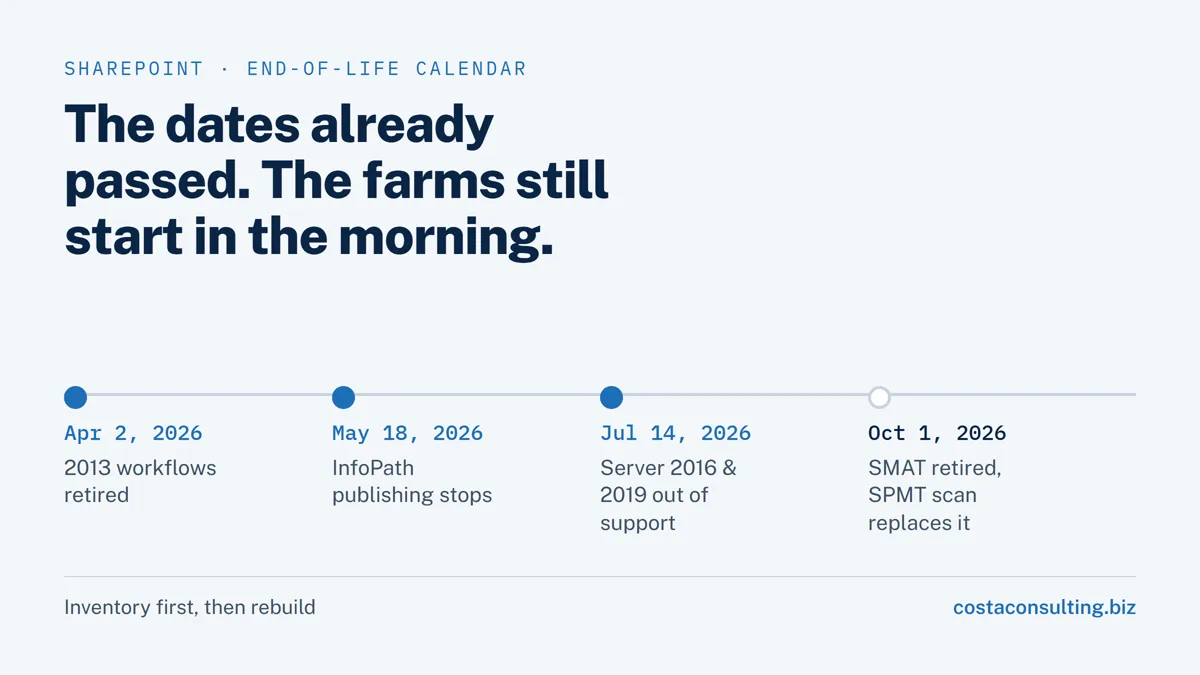
Most retirement articles warn you about a date in the future. This one is an inventory of dates that have already gone by. Between April and October 2026, Microsoft turned off SharePoint 2013 workflows, stopped accepting InfoPath forms, and ended support for SharePoint Server 2016 and 2019.
The reason these are easy to miss is that nothing announces itself. A farm that is out of support starts in the morning exactly like a supported one. A workflow that no longer runs does not send an error to anybody: the request simply sits there, and someone notices three weeks later that an approval never arrived.
Here is the full calendar, what each date actually broke, and where each one leads.
The calendar
| Date | What happened |
|---|---|
| November 2020 | SharePoint 2010 workflows removed from SharePoint Online |
| April 2, 2024 | SharePoint 2013 workflows turned off for new tenants |
| April 2, 2026 | SharePoint 2013 workflows fully retired for existing tenants, with no option to extend |
| May 18, 2026 | SharePoint Online stopped accepting newly published InfoPath forms and updates to existing ones |
| July 14, 2026 | End of extended support for SharePoint Server 2016 and 2019, SharePoint Designer 2013, InfoPath 2013, and Project Server 2016 and 2019 |
| October 1, 2026 | Microsoft retired the SharePoint Migration Assessment Tool; the scan built into SPMT replaces it |
Three of those dates land in a four-month window, which is why a company can be carrying all of this at once without having registered any of it.
April 2, 2026: the workflows stopped
SharePoint 2013 workflows were deprecated in 2023, switched off for new tenants in 2024, and retired for existing tenants on April 2, 2026. Microsoft stated there would be no extension.
If approvals that used to “just happen” went quiet in April, this is the first place to look. The rebuild is not a conversion: loops, state machines and anything that ran with elevated permissions need to be redesigned rather than ported across. SPMT can convert SharePoint Designer 2010 and 2013 workflows to Power Automate, but site workflows and workflow history do not come along.
The full inventory-and-rebuild sequence is in SharePoint 2013 workflows stopped running: how to rebuild them in Power Automate or Nintex.
May 18 and July 14, 2026: InfoPath is finished
InfoPath went in two steps. On May 18, SharePoint Online stopped accepting newly published forms and updates to existing ones. On July 14, InfoPath 2013 reached end of support along with InfoPath Forms Services on-premises.
Existing forms may still open, and that is the trap: they are running on software that nobody will patch, and the moment one breaks there is no supported way to fix it. Before you choose a destination, find out how many forms you actually have and which ones are still in use. The Microsoft 365 Assessment tool has an InfoPath scanner for precisely this.
Where they go next depends on what the form does, and the options are Power Apps, Nintex Forms, or Microsoft Forms. The decision table is in InfoPath is retired: how to migrate your forms.
July 14, 2026: the servers are out of support
Extended support for SharePoint Server 2016 and 2019 ended on July 14. In Microsoft’s words, from that date there are “no new security updates, non-security updates, free or paid assisted support options or online technical content updates.”
There are two destinations. Subscription Edition accepts content databases from 2016 and 2019 directly through a database-attach upgrade, and keeps you on-premises. SharePoint Online is the other path, and SPMT migrates content from SharePoint Server 2010 through 2019.
Older farms upgrade one step at a time: SharePoint 2013 content has to pass through 2016 or 2019 first, and site collections still in 2010 mode have to move to 2013 mode before they reach 2016. That constraint is what usually sets the real timeline.
Both paths, with what breaks on each, are in SharePoint Server 2016 and 2019 are out of support: your options now.
Picking the tool
Once you know where you are going, the tooling question follows: SPMT, which is free and covers on-premises sources, or ShareGate, which costs money and covers more workloads, tenant-to-tenant moves, and permission-heavy migrations.
Most real projects use both. The comparison, including what each one does with Nintex workflows, is in SPMT vs ShareGate.
What to do this week
You do not need a project to start. You need an inventory, and the tools for it are free:
- Run the Microsoft 365 Assessment tool for workflows and for InfoPath. It tells you how many of each you have and where they live.
- Run the SPMT scan against the farms you plan to move. It produces the inventory and risk report before anything is touched.
- Sort the results by whether anyone still uses them. In most tenants a large share of what turns up has not run in years, and the fastest migration is the one you decide not to do.
- Then plan the rebuilds, starting with the processes that have a business owner who will notice if they stop.
That order matters. Teams that skip straight to rebuilding end up carefully recreating workflows that nobody has triggered since 2019.
How we run these
We have done this on both sides: rebuilding retired workflows in Power Automate and in Nintex, and moving farms to SharePoint Online and to Subscription Edition. The approach is the same each time. Inventory first, decide what dies, rebuild in stages, and keep the old path open until the new one has proven itself.
The server side of that is in our CNA case study: about 100 TB of content databases out of an unsupported SharePoint, through 2016, into 2019, in three months. The Nintex side is in the Pluspetrol case study, where on-premises Nintex workflows moved to Nintex Automation CE. The service itself is SharePoint consulting and migration.
If you are carrying any of the dates above and want a second opinion on the sequence, book a discovery call.
Sources
- Microsoft Support, SharePoint 2013 workflow retirement and SharePoint 2010 workflow retirement.
- Microsoft Learn, SharePoint Server 2016 lifecycle, SharePoint Server 2019 lifecycle, and Products ending support in 2026.
- Microsoft Learn, SharePoint Designer 2013 lifecycle and InfoPath 2013 lifecycle.
- Microsoft 365 Message Center, MC616550 and MC1255407, on InfoPath end of support and the end of form publishing in SharePoint Online (read through the public mc.merill.net mirror).
- Microsoft Learn, Overview of the upgrade process to Subscription Edition.
- Microsoft Learn, Introducing the SharePoint Migration Tool, SPMT scan, and SharePoint Migration Assessment Tool (retirement notice, October 2026).
- PnP, Microsoft 365 Assessment tool: Workflow and InfoPath.