SharePoint · SharePoint Server · Migration
SharePoint Server 2016 and 2019 are out of support: your options now
By Costa Consulting Group · · 4 min read
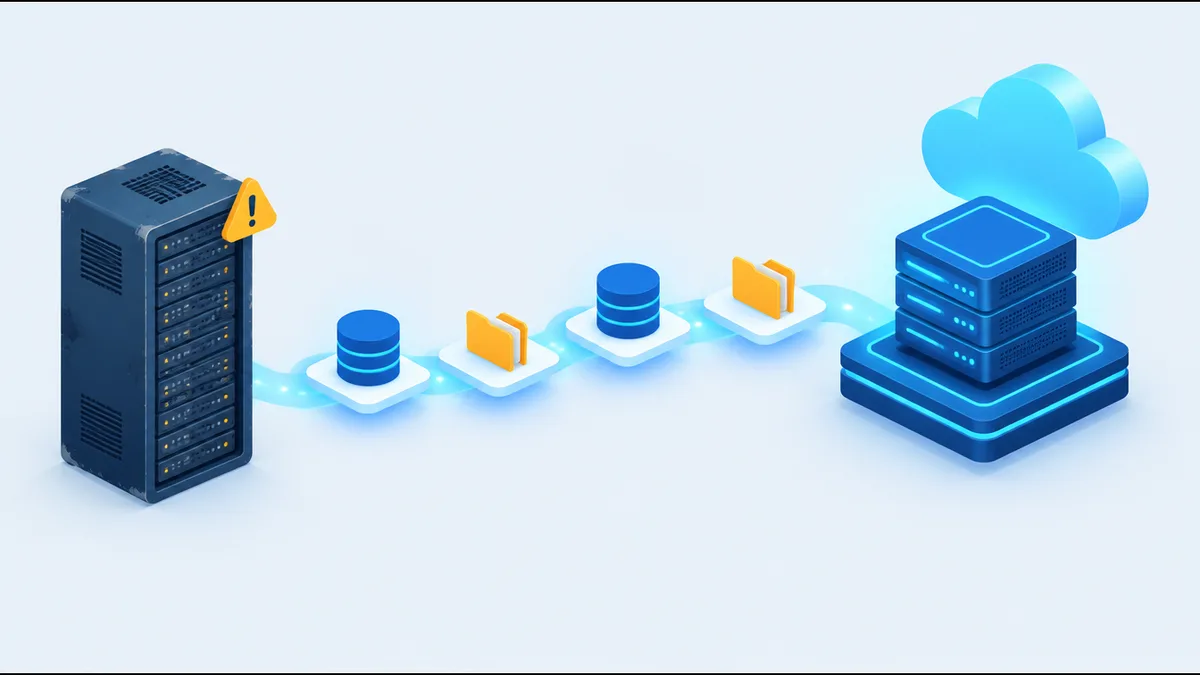
If your company still runs SharePoint Server 2016 or 2019, it is now running software Microsoft no longer patches. Extended support for both versions ended on July 14, 2026. The farm still starts in the morning, which is exactly why this deadline is easy to ignore. Here is what changed, where you can go, and how we plan these moves.
What end of support means
Microsoft’s lifecycle pages list the end of extended support for SharePoint Server 2016 and 2019 on July 14, 2026, the same day as SharePoint Designer 2013, InfoPath 2013, and Project Server 2016 and 2019. From that date there are, in Microsoft’s words, “no new security updates, non-security updates, free or paid assisted support options or online technical content updates.”
We found no Extended Security Updates (ESU) program for SharePoint 2016 or 2019, the kind Microsoft offers for some Windows Server and SQL Server versions. Plan as if there will be none.
In practice:
- Security: new vulnerabilities in SharePoint stay open on your farm.
- Compliance: audits and cyber-insurance questionnaires increasingly ask whether you run supported software.
- Everything around it: InfoPath Forms Services, SharePoint 2010 workflows, and SharePoint Designer 2013 lost support on the same date, so the pieces most farms depend on are out of support too.
The two supported destinations
SharePoint Server Subscription Edition
Subscription Edition (SE) is the current on-premises version. It follows Microsoft’s Modern Lifecycle Policy, so it has no fixed retirement date as long as you stay current: Microsoft ships a public update every month, and each update is supported for one year.
SE makes sense when:
- Data must stay in your own data center for regulatory or contractual reasons.
- You have custom farm solutions (full-trust code) that you cannot rebuild yet.
- You depend on SharePoint 2013 workflows, which keep working in SE through SharePoint Workflow Manager, while they no longer run in SharePoint Online.
The requirements matter for budgeting: Windows Server 2019, 2022, or 2025, and SQL Server 2019 (CU5 or later) or SQL Server 2022, Standard or Enterprise.
SharePoint Online (Microsoft 365)
SharePoint Online removes the servers, patching, and upgrades altogether. It is the right destination for most companies that already use Microsoft 365 for email and Teams.
The trade-off is that some things do not move:
- Farm solutions cannot be installed in SharePoint Online.
- SharePoint 2013 workflows stopped running in SharePoint Online on April 2, 2026.
- InfoPath forms cannot be migrated, and InfoPath Forms Services was retired in SharePoint Online.
- Custom master pages and custom list forms have to be redone with modern pages and Power Apps.
How you get there
To Subscription Edition, the upgrade is a database-attach upgrade. SE accepts content databases from SharePoint 2016 and 2019 directly. Older versions must be upgraded one step at a time: SharePoint 2013 content goes to 2016 or 2019 first, and site collections still in SharePoint 2010 mode must be moved to 2013 mode before they reach 2016.
To SharePoint Online, Microsoft’s SharePoint Migration Tool (SPMT) is still current and migrates content from SharePoint Server 2010 through 2019. It can also convert SharePoint Designer 2010 and 2013 workflows and SharePoint 2010 out-of-the-box workflows to Power Automate. Note that Microsoft retired its older SharePoint Migration Assessment Tool (SMAT) on October 1, 2026; the scan in SPMT replaces it.
What we learned migrating 100 TB
We migrated the Comisión Nacional de Acreditación in Chile from SharePoint 2013 to a 10-server SharePoint 2019 farm: about 100 TB of content databases in 3 months, from testing to production (case study, in Spanish). Three lessons from that project apply to every on-premises upgrade:
- Old databases carry old problems. Their main databases came from SharePoint 2007 and were still in compatibility mode. At the 2016 step, an incompatible collation inherited from 2007 had to be fixed before we could continue. Test-attach every database early.
- Custom solutions decide the schedule. Content moves; custom code has to be rebuilt, repackaged, or retired. Inventory it first.
- Rehearse the cutover. Large databases make the final copy the longest step. Time it in a dry run so the production weekend holds no surprises.
A practical plan
- Inventory: site collections, database sizes, custom solutions, InfoPath forms, workflows (2010, 2013, and third-party such as Nintex), and integrations.
- Decide per workload: most content usually goes to SharePoint Online; what must stay on-premises goes to SE.
- Fix what is already broken: retired workflows and InfoPath forms need a new home either way. See our guides on SharePoint 2013 workflows and InfoPath forms.
- Pilot, then migrate in waves, with permissions checked before each wave.
- Retire the old farm only after the new one has run a full business cycle.
How we can help
Costa Consulting Group plans and runs SharePoint upgrades and migrations, from a single site collection to multi-terabyte farms, and rebuilds the forms and workflows that do not move on their own. See our SharePoint and Microsoft 365 services or book a discovery call and we will review your farm and tell you which path fits.
Sources
- Microsoft Learn, SharePoint Server 2016 lifecycle and SharePoint Server 2019 lifecycle.
- Microsoft Learn, Products ending support in 2026, updated August 2026.
- Microsoft Learn, SharePoint Server Subscription Edition lifecycle and servicing policy.
- Microsoft Learn, What’s deprecated or removed from SharePoint Server Subscription Edition.
- Microsoft Learn, Overview of the upgrade process to Subscription Edition and software requirements.
- Microsoft Learn, Introducing the SharePoint Migration Tool and SPMT FAQ, August 2026.